
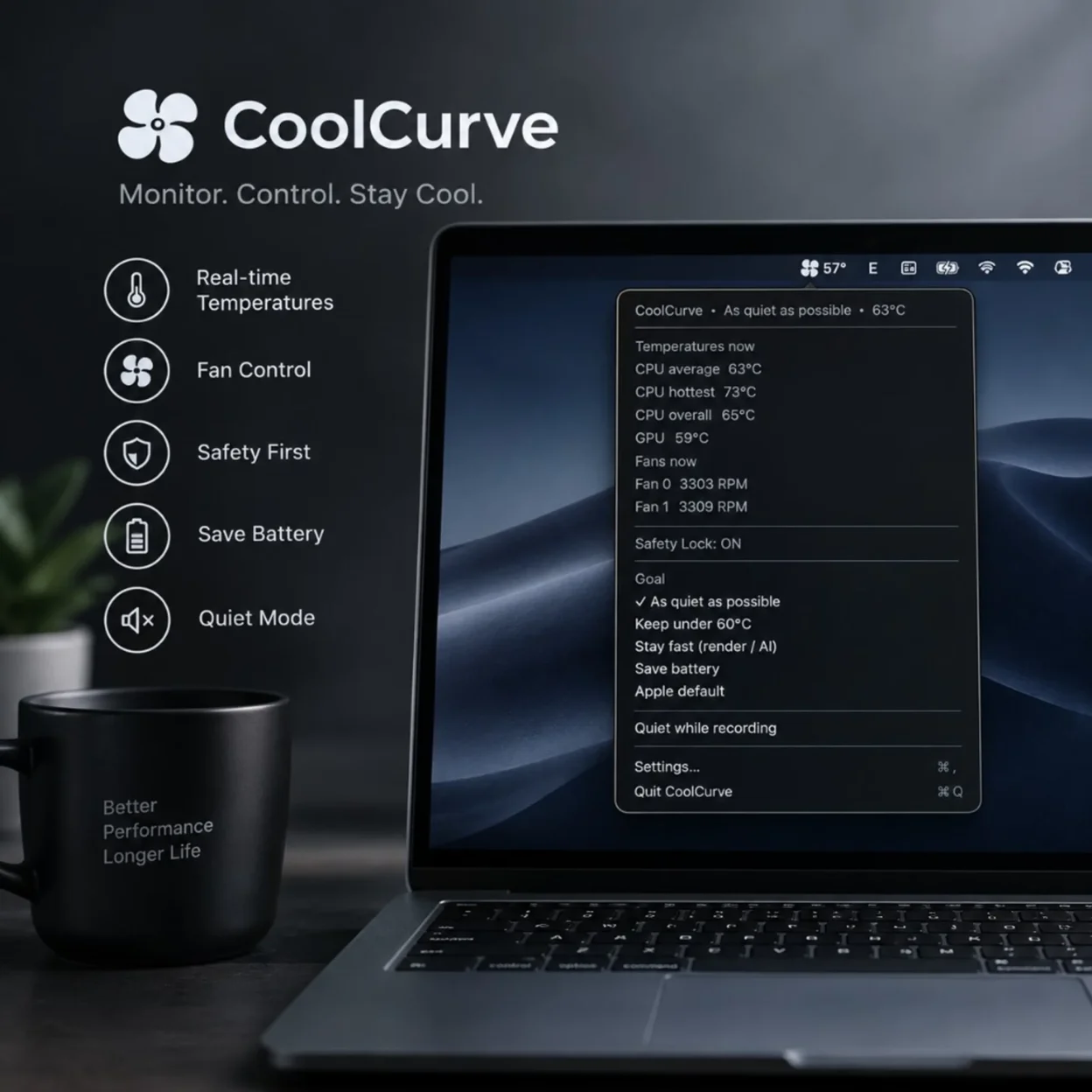
CoolCurve: Goal-Based Fan Control for Apple Silicon (2026)
Under a long Final Cut export, a heavy Xcode + Docker stretch, or a local model in Ollama / LM Studio, Apple Silicon heats fast. Stock macOS often keeps the fans polite for a while — then they catch up with a sudden rush. That lag is a quiet-first tradeoff, not a broken sensor. CoolCurve is a menu bar utility for M1–M4 Macs that flips the question from “write me a temperature rule” to “what do you want right now?” — quiet, cooler, stay fast, or save battery — with a smooth temperature→fan curve and a Safety Lock that stays on.
CoolCurve (v0.3) reads CPU/GPU temperatures and fan RPM from the SMC, then drives fans from a chosen Goal. It targets macOS 14 Sonoma+ on Apple Silicon only. Near about 95°C, a privileged daemon forces fans to maximum until temperature falls. List price on Gumroad is $9.99 one-time as of this writing (launch/early; may rise later). Developer ID–signed, Apple notarized .pkg. Not a full monitoring suite; not for Intel Macs.
Why Mac fan control still matters in 2026
Apple Silicon is strong. Chassis are thin. Fans are small. The same three sessions keep showing up for creators and developers:
- Long renders / exports — Final Cut, DaVinci Resolve
- Compile + Docker — Xcode, large builds, containers that warm the shell
- Local AI — LLMs and diffusion on the machine you own (see our notes on Ollama on Apple Silicon and running models with mlx-lm)
In those stretches, most people do not want a sensor spreadsheet. They want a short contract: heavy work — stay fast; meeting or podcast — don’t scream into the mic; writing docs — prefer quiet. Classic fan utilities still lean engineer: if sensor X ≥ 70°C, set Y%. Fine for power users. Friction for everyone else.
What CoolCurve is (and isn’t)
CoolCurve does one job: read temperatures and fan RPM, then apply a curve from the Goal you pick. Fans ramp up and down gradually — less of the familiar silent-then-roaring jump when you change modes. A one-time admin install lands a privileged daemon; you can quit the menu bar UI and thermal protection can still run.
It is not:
- a full iStat-style suite (RAM, network, disks, everything)
- a tool for Intel Macs (v0.3 does not support them)
- a switch that turns off macOS thermal safety — that switch is intentionally missing
Short version: thermal-focused, goal-based, safety-first.
Goal Mode: outcomes, not a temperature spreadsheet
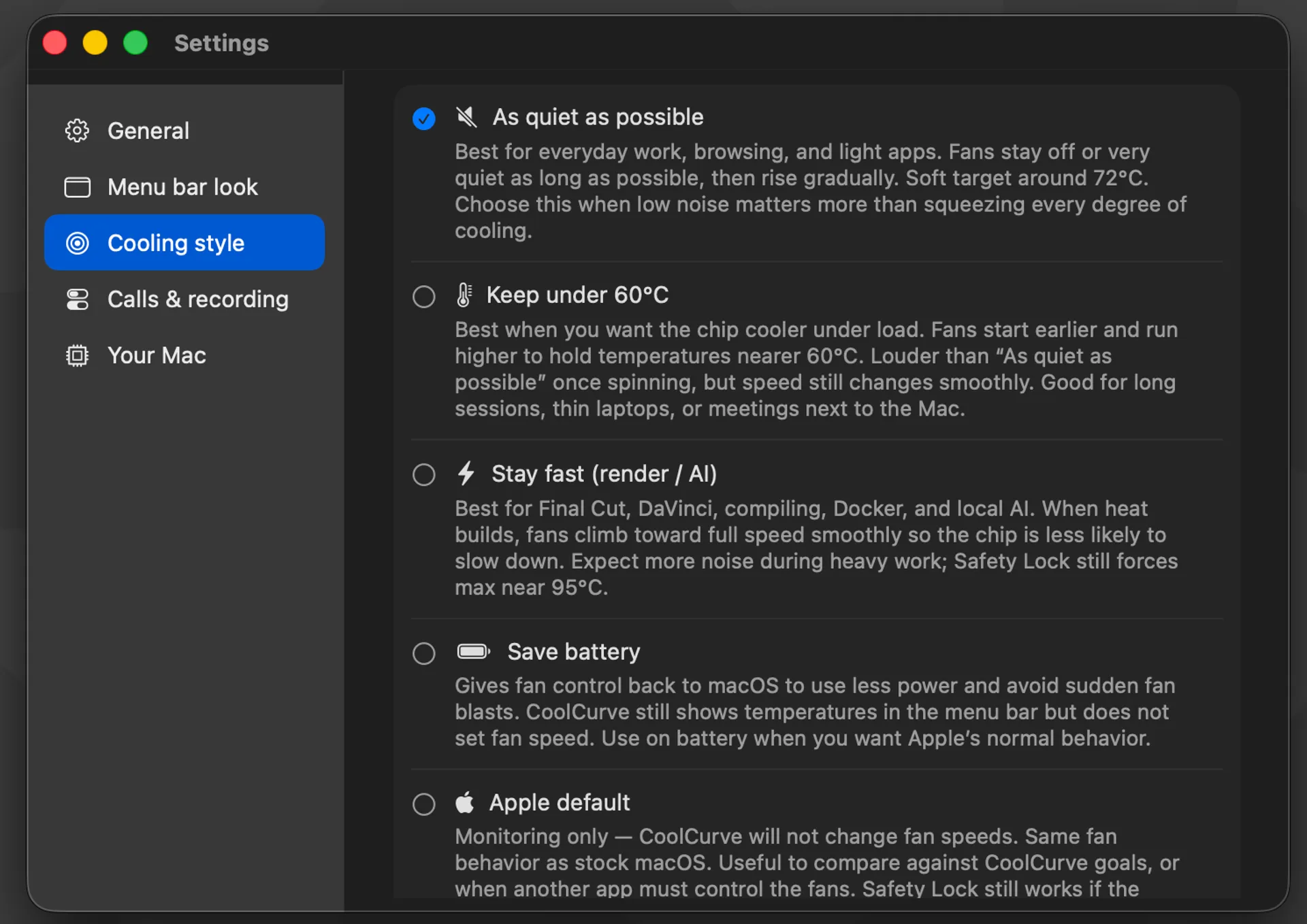
That is the main product difference versus step-rule engines. Settings → Cooling style lists five Goals:
As quiet as possible
Everyday work, browsing, light apps. Fans stay off or gentle as long as they reasonably can, then rise gradually. Soft target in the low-to-mid 70s °C (the UI cites about 72°C). Choose this when noise matters more than squeezing every degree of cooling.
Keep under 60°C
Fans engage earlier and climb higher to hold the chip nearer 60°C. Better for thin laptops, long sessions, meetings, or anyone who prefers a cooler chassis even if fans speak up sooner.
Stay fast (render / AI)
Built for the workloads where fan lag hurts most: render, compile, Docker, local AI. When heat builds, fans climb with more purpose so sustained performance is less likely to go thermally soft. Safety Lock still sits underneath near ~95°C.
Save battery
Hands fan control back to macOS to save power. CoolCurve keeps monitoring in the menu bar.
Apple default
Monitor only — CoolCurve does not drive RPM. Useful for comparing stock behavior, or when another tool should own the fans. Safety Lock still works underneath.
Switching Goals shares the same smooth ramp behavior, so acoustics stay more civilized than slamming a hard RPM preset.
Safety Lock: the non-negotiable part
Fan control that writes to the SMC is a sensitive category. Users are right to distrust any tool that advertises “turn off all safety.”
CoolCurve takes the opposite stance:
- Safety Lock is always on in normal use
- A privileged daemon watches peak CPU/GPU temperature
- Near ~95°C, fans are forced to maximum until temperature falls (with hysteresis)
- There is no everyday “override system” toggle
You pick a Goal to steer quiet / cooler / faster. You do not get to disable the backstop. If the menu says the daemon is down or needs reinstall, there is a restart action — or sudo coolcurve install in Terminal. When protection isn’t reachable, the app says so.
Quiet while recording (Mic Guard)
Creators often get stuck between two needs: the machine is hot, and the mic is live.
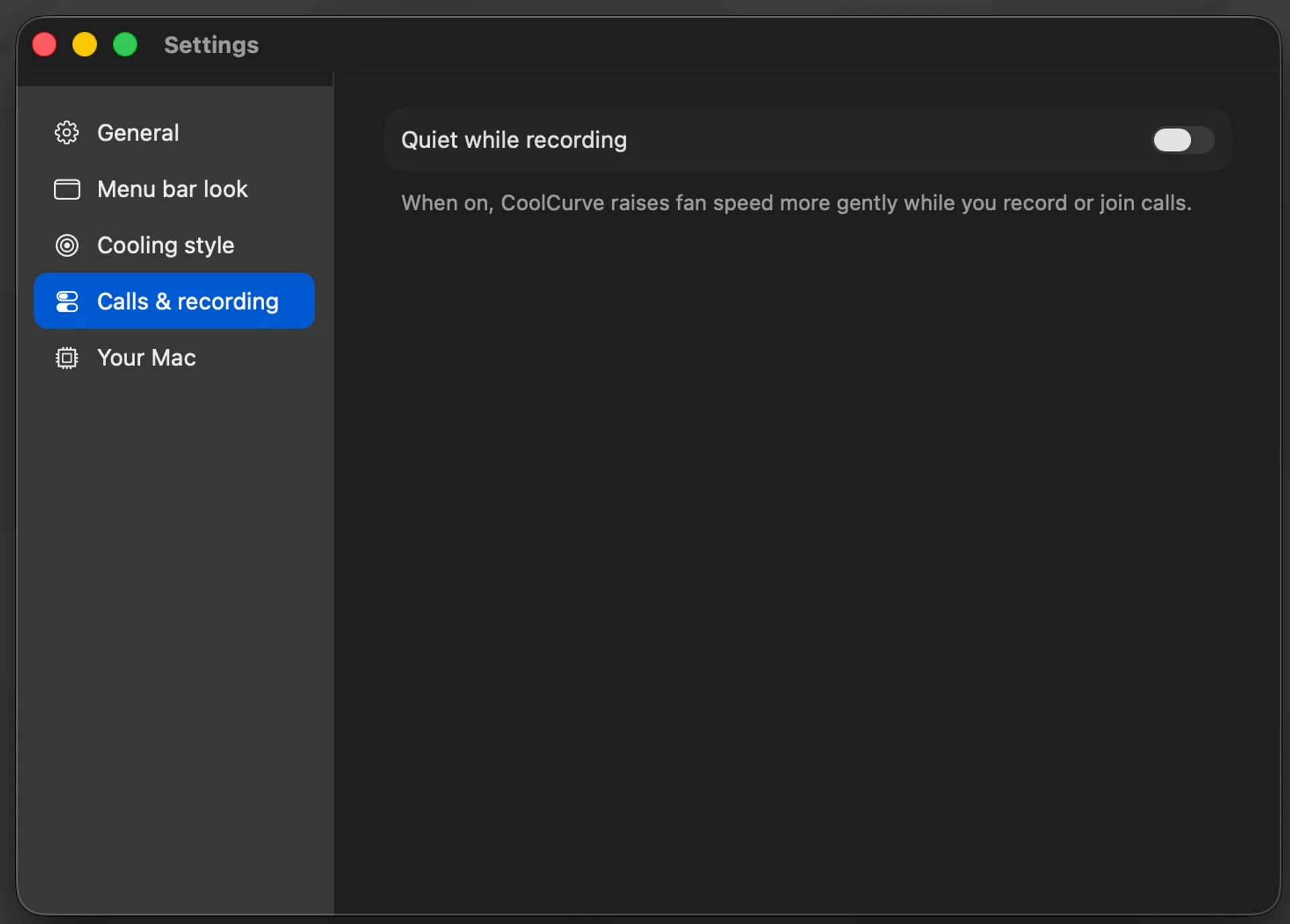
Quiet while recording only soft-caps aggressive ramp-up so a Zoom call or podcast take is less likely to catch a sudden fan spike. The Goal stays the Goal; the ramp just behaves more gently when mic noise matters. Niche, but exact: podcasts, interviews, standups, voiceover.
Menu bar, settings, and CLI
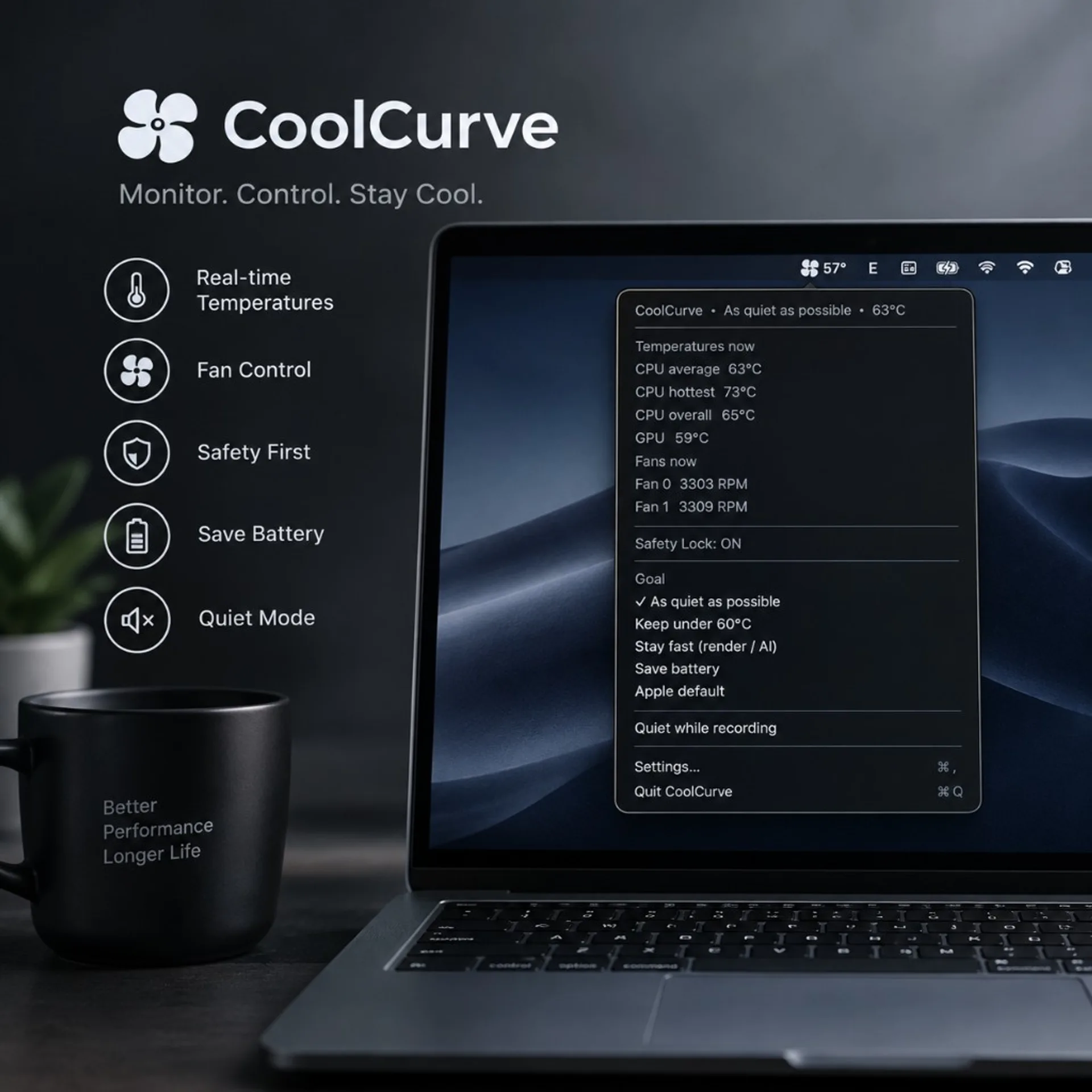
After install, CoolCurve lives in the menu bar. You choose what to show: CPU average, hotspot, package, GPU, fan RPM, or the Goal name. Open the menu for active Goal, sensors, Fan 0 / Fan 1 RPM, Safety Lock status, Mic Guard, and Settings (⌘,).
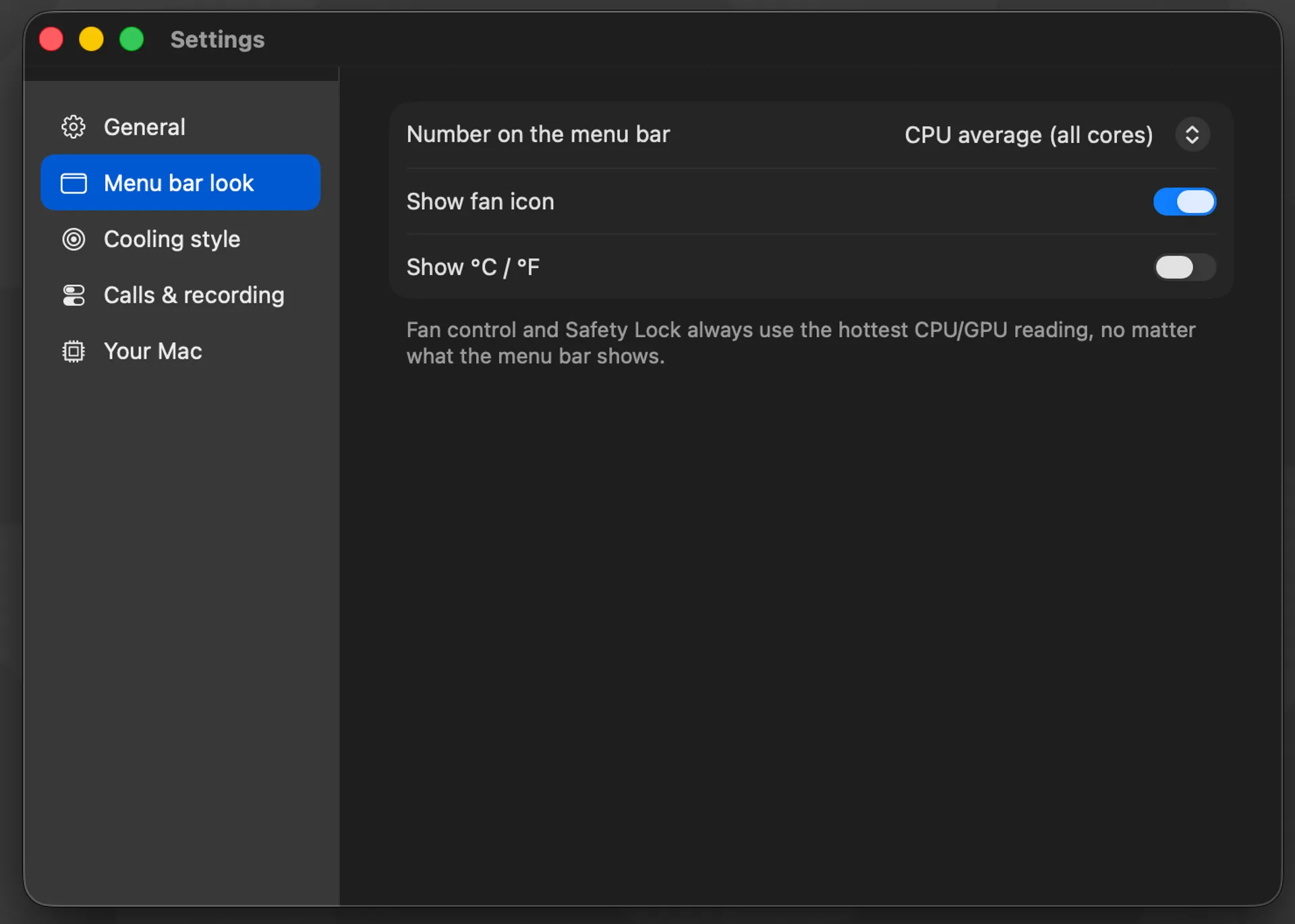
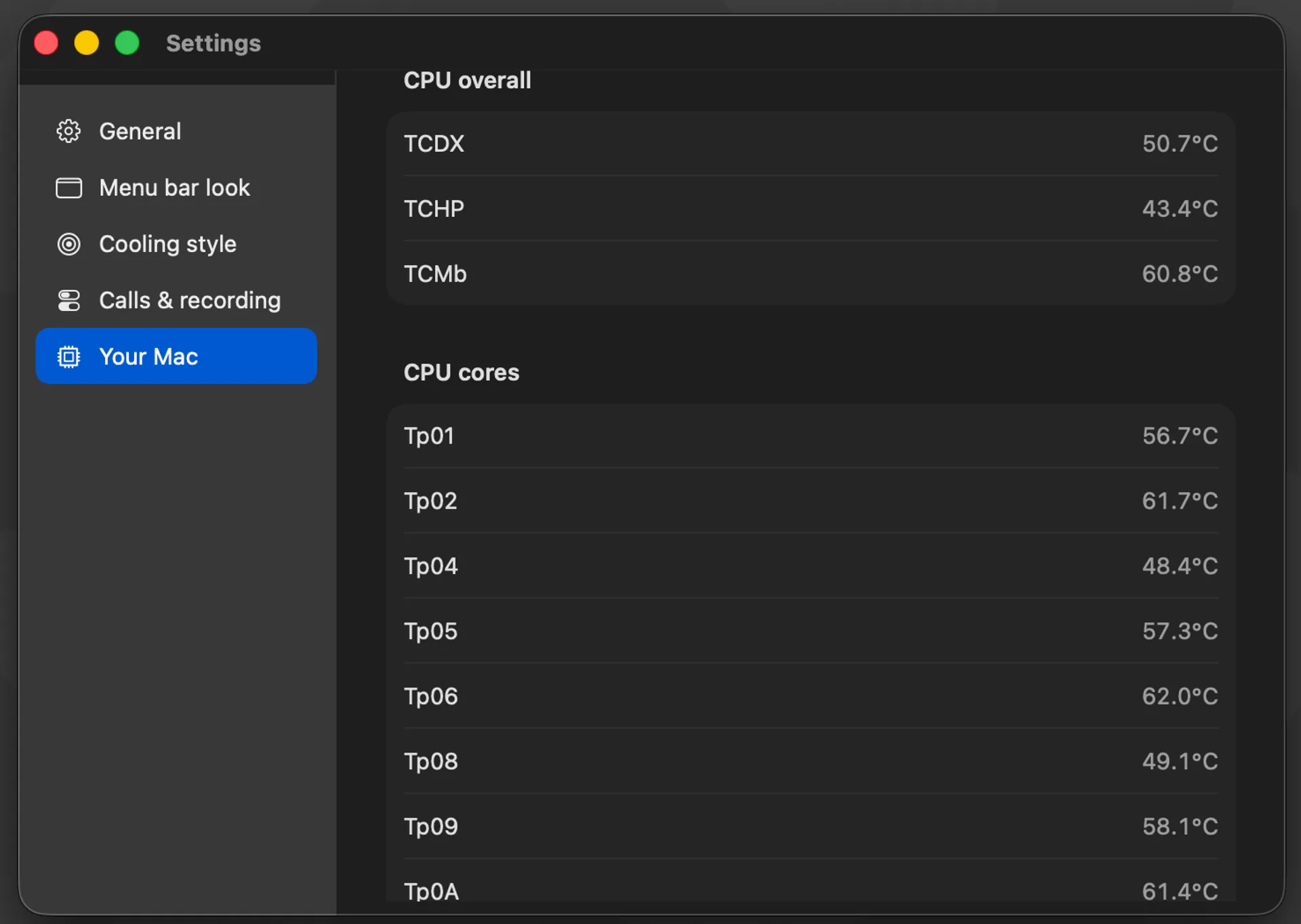
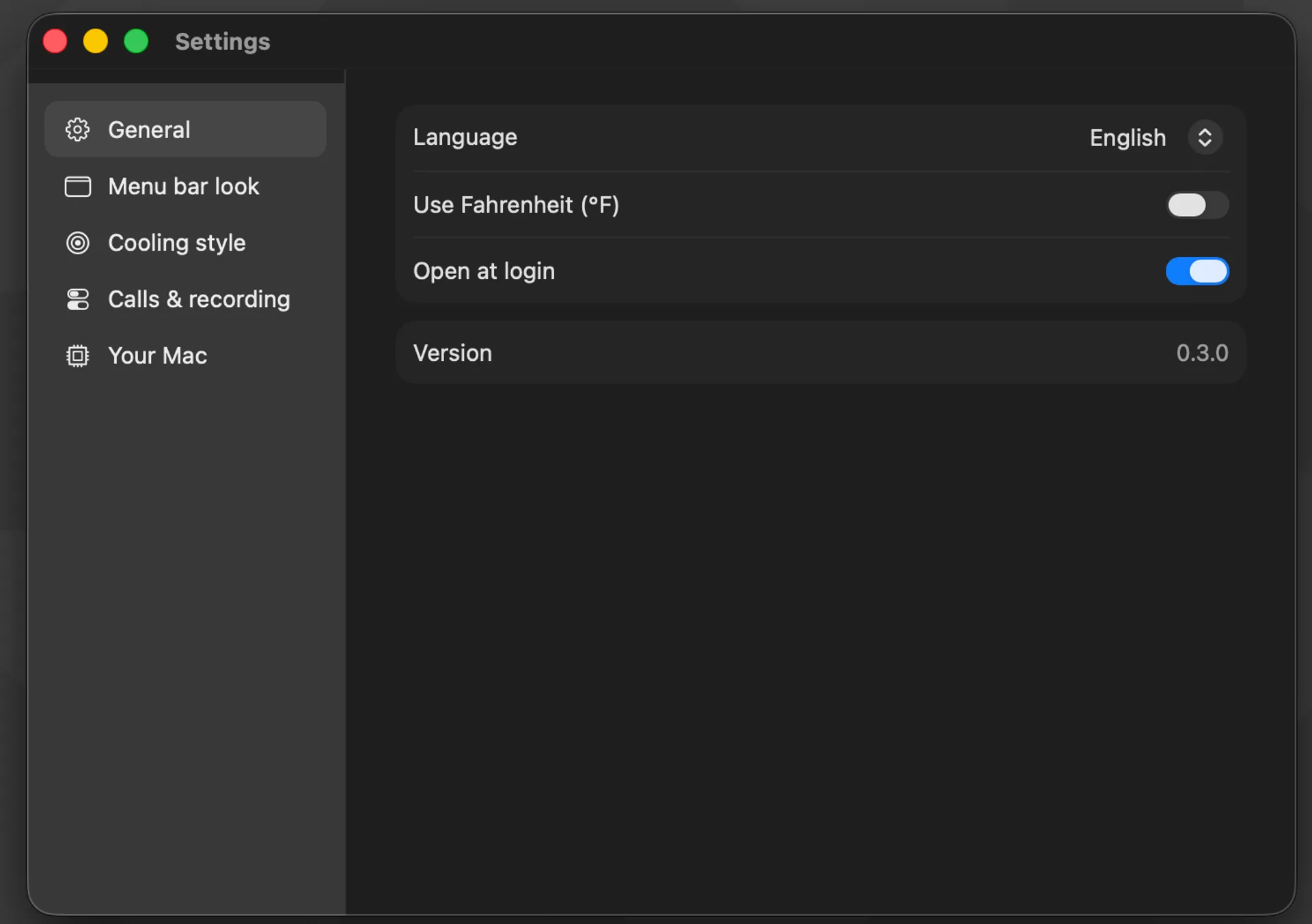
Settings stay out of the way: language, °C/°F, Launch at Login, menu bar appearance, Goal descriptions, and a Your Mac / Compatibility pane (chip, model, fan count, live sensor keys). You can copy a discover report when you need support.
UI languages are first-class: English, Japanese, Simplified Chinese, German, French, Spanish, Portuguese (Brazil), Korean — or follow System.
A CLI ships with the install:
coolcurve status
coolcurve max
coolcurve auto
coolcurve set 4000
Useful for scripts, SSH sessions, or quick checks without opening the menu. A deliberate Terminal hold can be cleared with Release Terminal Hold, Apple default, or coolcurve auto.
A practical heavy-load workflow
- Install CoolCurve once (admin password for the daemon).
- Turn on Launch at Login.
- Before opening Ollama / LM Studio / ComfyUI / a long compile — set Stay fast (render / AI).
- Watch the menu bar: temperatures rise; fans follow a smoother, more purposeful curve instead of waiting until the chassis already feels hot.
- When you’re back to writing or browsing — switch to As quiet as possible or Save battery.
Final Cut / DaVinci work the same way. Long render → Stay fast. Light timeline work → Quiet. No rule spreadsheet every time the context changes. For local-model setup context, see also Ollama in 2026.
How it compares (said plainly)
| Option | Strength | Limit |
|---|---|---|
| Stock macOS | Simple, quiet day-to-day | Reactive under long load |
| Macs Fan Control | Popular; Pro tier available | Curves/presets; Apple Silicon experience has varied across generations |
| TG Pro | Deep rules, broad brand | “Write rules” mental model; override narratives make some users nervous |
| CoolCurve | Goal Mode, Safety Lock always on, multi-language UI, thermal focus | Apple Silicon only; not a full monitoring suite |
Not affiliated with Apple. No “Apple recommends this” claims.
Who it’s for — and who it isn’t
Worth trying if you:
- Render or grade video for long stretches on a MacBook or Studio
- Compile, run Docker, or lean on Xcode hard
- Run local LLMs / diffusion and feel heat before fans catch up
- Want a clean, focused menu bar tool without a dense sensor dashboard
- Prefer a one-time purchase, notarized
.pkg, and no account for core fan control
Not a fit if you:
- Use an Intel Mac
- Want a “monitor everything on the Mac” suite
- Are looking for a switch that disables macOS thermal safety
| Chip | Apple Silicon (M1–M4 family) |
|---|---|
| macOS | 14.0 or later |
| Install | Developer ID–signed, Apple notarized .pkg · admin password once |
| Distribution | Direct download (full fan control can’t ship sandboxed on the Mac App Store) |
Install, privacy, and price
CoolCurve reads SMC sensors and writes fan targets through a local privileged daemon. No account is required for core fan control in v0.3. Logs (if you enable related tooling) stay on your Mac unless you choose to share them.
Typical install: open CoolCurve-0.3.0.pkg, enter your admin password, find CoolCurve in the menu bar, pick a Goal. Clean uninstall with uninstall.sh or sudo coolcurve uninstall; fans return to Apple automatic control after a proper uninstall.
As of this writing on the Gumroad listing:
- List price: $9.99 one-time (launch / early)
- 7-day refund if CoolCurve can’t read sensors or control fans on a supported Apple Silicon Mac after you follow the install guide
- Support: hello@rawgearlab.com
Pricing may move toward ~$14.99 as the product settles. A Pro tier only makes sense when Pro features actually ship (closed-loop target temp, timeline, app scenes…). For v0.3, the honest package is: Goal Mode + Safety Lock + Mic Guard + menu bar + CLI + multi-language UI.
FAQ
Does CoolCurve disable macOS thermal safety?
No. Safety Lock stays on. Near ~95°C the privileged daemon forces fans to maximum until temperature falls. There is no everyday override toggle.
Does it work on Intel Macs?
Not in v0.3. Apple Silicon (M1–M4 family) only, on macOS 14 or later.
What is Stay fast (render / AI) for?
Long renders, compiles, Docker, and local AI sessions where stock fans often trail heat. Fans ramp with more purpose while Safety Lock remains the hard ceiling.
What does Quiet while recording do?
It soft-caps aggressive fan ramp-up during calls or recordings so sudden spikes are less likely to hit the mic. It does not replace your Goal.
How much does it cost?
$9.99 one-time on Gumroad as of this writing (launch/early pricing; may change). Confirm the live checkout price before you pay.
Is there a refund?
The seller lists a 7-day refund if CoolCurve cannot read sensors or control fans on a supported Apple Silicon Mac after you follow the install guide. Confirm current policy on the product page.
Note: This overview follows the public CoolCurve product materials and UI screenshots (v0.3.0). It is not an independent multi-week lab review. CoolCurve is sold by Gear Lab on Gumroad; if listing details disagree with this page, trust the live product page. Support: hello@rawgearlab.com.